
How do I add Circular’s email to my safe senders list?
What are safe senders?
Safe senders are essentially a list of email addresses or domains that you designate as trustworthy, ensuring that emails from these senders are not mistakenly filtered into your Junk Email folder. This feature is crucial for maintaining uninterrupted communication with entities you trust or regularly interact with.
To prevent important communications from Circular from being overlooked or lost in your junk folder, it's recommended to add Circular to your list of safe senders or your email whitelist. This action requires manually inputting our contact information into your email settings.
For uninterrupted service and to ensure all our emails reliably reach your inbox, please add the following domains to your list of safe senders:
- @nowcircular.com
- @nowcircular.freshdesk.com
By doing so, you're taking a proactive step to guarantee that all crucial updates, notifications, and correspondences from Circular are received without delay or disruption. This simple measure can significantly enhance your experience with Circular by ensuring you're always informed and up to date.
\
\
Gmail
-
Click the gear/setting icon in Gmail and select "See all settings" from the Quick settings menu
-
Navigate to "Filters and Blocked Addresses" in the top menu
-
Select "Create a new filter"
-
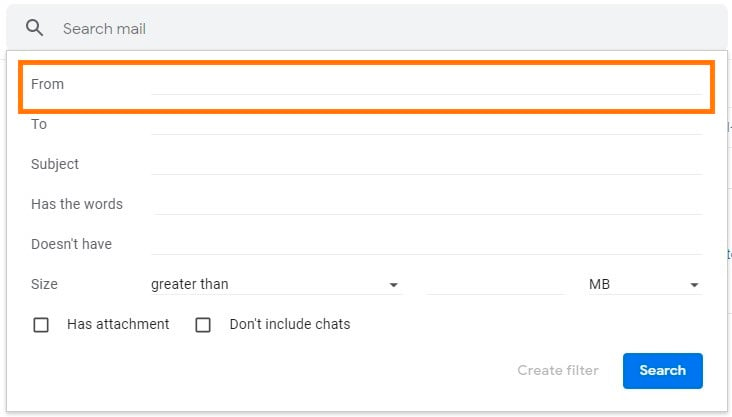
Add a specific email or a whole domain in the "From" field \n \n The "From" field is where you'll specify what's getting whitelisted. In Gmail, you can specify either a specific email address (e.g. [hello@nowcircular.com](mailto:hello@domain.com)), or you can whitelist a whole domain by omitting everything before the at symbol (e.g. @domain.com). The former will whitelist one specific email address while the latter whitelists anyone who is sending emails from that domain. \n
\
-
Click "Create filter." (next to the blue Search button)
-
Check "Never send it to Spam" in the checkbox
-
Click "Create filter” button again, and this creates the whitelist within Gmail
\
\
Outlook
- Click the gear/settings icon in Outlook and select "View all Outlook settings" (at the bottom of the dropdown menu)
- Select "Mail" from the settings menu
- Choose "Junk email" from the submenu
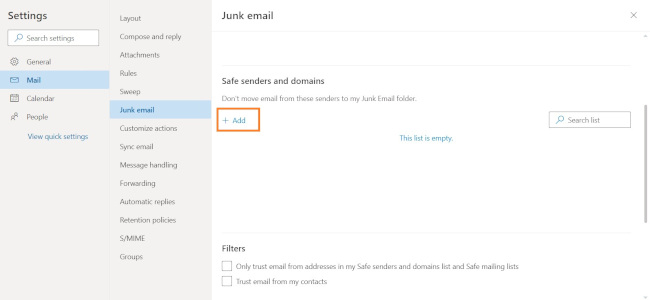
- Click "Add" under "Safe senders and domains"
- Enter the email address that you want whitelisted
- Choose "Save" \n \n
\
\
Yahoo
- Click the gear/settings icon in Outlook and select "View all Outlook settings"
- Select "Mail" from the settings menu
- Choose "Junk email" from the submenu
- Click "Add" under "Safe senders and domains"
- Enter the email address that you want whitelisted
- Choose "Save"
\